Tuesday, 10 November 2015

Robot Arm - Full Control

Last time on the Robot Arm project, I was able to control two of the motors on the arm from a Raspberry Pi using a single Arduino and motor shield.

The arm however has 5 motors so this does limit what I can do with it. I decided to get a new Arduino and Motor shield and add them to the project.

The new motor shield is a cheap build of the old Adafruit motor shield. This requires different code to control from the previous post. A more detailed description can be found here.

The new Arduino is a standard Uno board.

I got lucky here, because when I plugged it into the USB hub it is recognised at /dev/ttyACM0, the old board was recognised at /dev/ttyUSB0. (It also appears as Arduino Uno, instead of Arduino Diecimila or Duemilanove w/ ATmega168 in the Arduino IDE.)

This allowed me to use both easily with the following design:
No matter how I plug the Arduinos into the hub, or which order, I can still reliably address each one independently.

The python script needed two lines changing to allow me to send the same character to both Arduinos. They each ignore characters intended for the other one.

import termios, fcntl, sys, os, serial

arduino1 = serial.Serial('/dev/ttyUSB0')
arduino2 = serial.Serial('/dev/ttyACM0')
fd = sys.stdin.fileno()

oldterm = termios.tcgetattr(fd)
newattr = termios.tcgetattr(fd)
newattr[3] = newattr[3] & ~termios.ICANON & ~termios.ECHO
termios.tcsetattr(fd, termios.TCSANOW, newattr)

oldflags = fcntl.fcntl(fd, fcntl.F_GETFL)
fcntl.fcntl(fd, fcntl.F_SETFL, oldflags | os.O_NONBLOCK)

try:
    while 1: # This is a tight loop with high CPU
        try:
            c = sys.stdin.read(1)
            # repr() : Return a string containing a printable
            #    representation of an object
            arduino1.write(c)
            arduino2.write(c)
            print "Read character from stdin", repr(c)
        except IOError: pass
finally:
    termios.tcsetattr(fd, termios.TCSAFLUSH, oldterm)
    fcntl.fcntl(fd, fcntl.F_SETFL, oldflags)


The full code can be found on GitHub: https://github.com/jscott7/Robot-Arm.git


Monday, 9 November 2015

ZEUS Safety Shift - Part 2

Previously I introduced the ZEUS safety shift, a duty performed mainly by the Ph.D. students who worked with the Particle Physics detector. Now to go on the walk round!

The first step I took was to return back up to the ground floor to check the gas mixing rack (the panel just to left of centre). Here you would check the pressures on various manometers. A process for dealing with any deviations from norms was provided.


Turn 180 degrees and look back. Here you can see the pipes heading off on their way to the Pit. The corridor here leads back to the main entrance doorway (seen from the outside in the earlier post).


Now I would take the lift down floors to the 6th floor, actually 2 floors underground. Go through some doors in front of me out of the lift and I ended up in a large machinery space.

The yellow line on the floor is a fluorescent paint that guides you to the exit in case of a power cut. Turning off the lights resulted in the room being bathed in a eerie glow from this and various indicator lights. This could easily be a set for a sci-fi movie!

Following the line to the silver door in on the far wall, I would turn the corner and see my next target in the gloomy distance.

These were the calorimeter power supply units. The safety check here was to ensure the temperatures remained within safe bounds.


The large air conditioning ducts to the left in the earlier picture also had a habit of making a noise that sounded just like something scuttling through them, just to add to the atmosphere.

As an aside, the 6th floor also had the electronics lab where I spent quite a few hours analysing components of the tracking detector trigger using the test bench seen below.


My next task was to re-enter the Pit and check the far side of the detector, this involved passing under the beam through this concrete lined tunnel

The back of the detector was certainly more cramped than the other side.

The primary check here was to check gas flow through a bubble gauge, the yellow cabinet just to left of centre
I would then make a walk around the front of the detector to perform general checks before the final destination on the round which was inside the Rucksack. Here we would check on the trigger components.
An interesting, and fortunately rare, issue here was that the electronic cards would gradually ease themselves out of their sockets over a period of time due to vibration from the cooling fans. On one of my last shifts, I was on duty with a senior member of the collaboration who hadn't been shift leader for some time. Early on in the night he noticed a problem with the data from the detector that was serious enough to consider turning of data collection entirely. He asked me if I'd seen it before and while I hadn't seen those particular symptoms I said I'd head off to the Rucksack to check it out.

When I got there, I simply gave every card a push. I returned to find all was well with the data. (I remember giving a suitable vague and complex explanation)

And that was it, back to the control room for another couple of hours working on analyses until your next walk round.

I think this sign nicely summed up the end of 8 hours underground. Warning, Danger of Health!


Thursday, 8 October 2015

GitHub, and the SupermarketPlanner

I've not yet used GitHub so I thought I'd get familiar with it by setting up a repository with an old .NET project of mine, the Supermarket Planner.

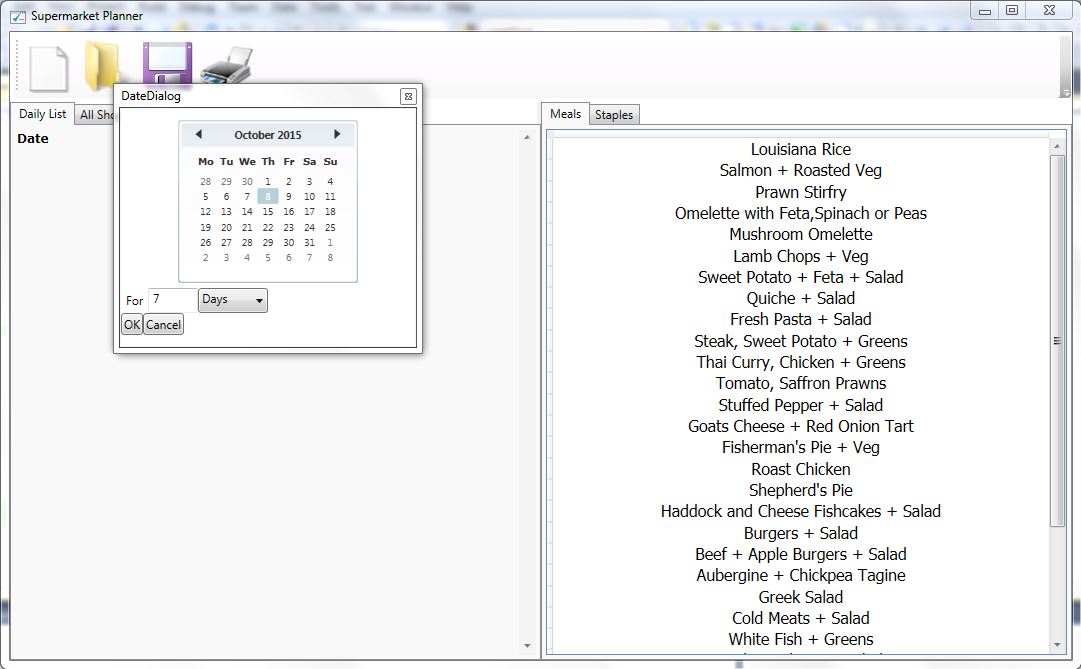
The SupermarketPlanner is a WPF app that allows me to build a shopping list from a list of common meals.

When you start a new list you can choose the number of days to plan ahead.


Next, you can drag and drop meals onto the list (as well as other staples)


Finally print out the list and you're ready to go.

The project was interesting because I wanted to use 2-way binding on the WPF grid as well as drag and drop between different grids. There is also some hierarchical binding to XML in there! I might go into detail on some of these in a future post.

While it's functionally complete, there are a few downsides. One is that it's too much work to get the printer out when you might as well just write the list down. I'm thinking that creating a mobile phone client that can sync the list would make it much more usable and would save paper!

So, on to GitHub.

First I set up an account and followed the instructions to install the GitHub desktop. These were fairly self explanatory

Once installed, open the desktop and create a repository. I clicked on on the +  and create the name of the repository and path to my project locally.


You should create a README.md and LICENSE.md text file with appropriate contents. The README appears on the GitHub Repository page so it's especially important to include this.

Next, select the files to commit and enter the Summary and Description before the Commit to Master button can be clicked.

Then Sync to get this uploaded to the server.

Finally, I didn't want the binary and obj files to be included in the list whenever I wanted to make an update, so I added the following to my .gitIgnore file. (This is created automatically alongside .gitattributes)

# Dot NET folders
bin/
obj/
*.suo

The URL to clone this project is https://github.com/jscott7/SuperMarketPlanner.git

GitHub seems very easy to use, making updates is simple and there is support for issue tracking. Also, as future Robot Arm posts are likely to include increasingly lengthy code I'll set up a GitHub project instead of pasting it all in the blog.


Monday, 21 September 2015

ZEUS Safety Shift - Part 1

The 'Safety Shift' was a duty for all PhD. students working on the ZEUS experiment. This involved spending 8 hours at the detector hall, mostly in the control room, 8 floors underground. Although periodically you would take a walk around the site, checking the detector subsystems. The shift change-over times were 12am, 8am and 4pm. Shifts were on a rota and once you'd done 4 days in a row there would usually be a few weeks before your next one.

During a normal evening shift the only other person you'd see would be the shift leader who would be a more senior member of the collaboration. Personally, I think the safety shift had the better deal, at least we got to go and stretch our legs. During data taking the leader would have to be more or less continuously at the run control desk.

I loved the midnight until 8 shift. This was mainly because after about 1am you would have almost exclusive use of the ZEUS compute farm. And I did enjoy a bit the feeling of being stuck in a sci-fi set!

Here is a plan of the DESY site with the location of the experimental halls. ZEUS was located in the South Hall, just next to the Trabrennbahn. The South Hall complex was affectionately called "The Pit".

Scan of the back of the DESY Lageplan

You approached the hall through the Trabrennbahn car park. At midnight in the middle of winter this could be quite a lonely walk.


Once you swiped your entrance card you would enter the courtyard area and proceed through the small blue door into the hall itself.

Taking the lift down to the bottom you find the control room to your left. This picture was taken from the 2007 ZEUS shut down. The monitor at the bottom left was the desk for the safety shift.


The run control station for the shift leader is shown below. This was from a quiet evening in 1999.


If, instead of turning left, you exited straight out of the lift you would enter the main hall. The most obvious sight you'd see here was the Rucksack. This was a 3-story hut containing a large proportion of the trigger electronics. The whole hut was mounted on rails and could be moved to the right (in this picture) during access periods for the detector.

During normal operation, the detector itself was largely hidden from view by concrete shielding and the Rucksack itself. It was located to the left of the Rucksack in the above picture. Here is a view of the side facing the Rucksack.

Cabling between the detector and Rucksack was designed to be flexible and allow movement.


Part of the safety shift was to walk around the all with an eye out for any obvious problems. Professor Jon Butterworth, in his book Smashing Physics, tells of a time someone on safety shift found water dripping out from the concrete shielding. This wasn't the only time water got loose, my sister pointed out a leak from one of the pipes in the hall when I was giving her a tour. Her question was, "Is it supposed to be doing that?" With a significant amount of high voltage cables and delicate instruments around, this was not something to take lightly...

This view back from the top of the Rucksack stairs shows some of the remainder of the hall. (For orientation the lift was through the entrance where the blue doors can just be seen.)

Next time, I'll go into more detail about some of the checks we had to make, as well as visiting some of the (literally) darker corners of the pit.

Thursday, 10 September 2015

Remote Robot Arm

Earlier, I set up the Raspberry Pi to communicate with the Ardunio using a Python script. With this in place I can now start putting things together to make something more interesting; for example, controlling the Robot arm.

The first script itself was very basic, sending a few fixed characters with sleeps. To make this more interactive I need to be able to read characters from the keyboard.

I based my new controller script on an example in the Python FAQ. The main difference to the boilerplate sample is I write the character to the serial port that the Ardunio is listening on.

import termios, fcntl, sys, os, serial

ardiuno = serial.Serial('/dev/ttyUSB0')
fd = sys.stdin.fileno()

# Get state of tty and take a copy
oldterm = termios.tcgetattr(fd)
newattr = termios.tcgetattr(fd)

# Turn off echo, line buffering and special character processing
newattr[3] = newattr[3] & ~termios.ICANON & ~termios.ECHO

termios.tcsetattr(fd, termios.TCSANOW, newattr)
oldflags = fcntl.fcntl(fd, fcntl.F_GETFL)
fcntl.fcntl(fd, fcntl.F_SETFL, oldflags | os.O_NONBLOCK)

try:
    while 1:
        try:
            c = sys.stdin.read(1)
            # repr() : Return a string containing a printable
            #    representation of an object
            ardiuno.write(c)
            print "Got character", repr(c)
        except IOError: pass
finally:
    # restore old state
    termios.tcsetattr(fd, termios.TCSAFLUSH, oldterm)

    tcntl.fcntl(fd, fcntl.F_SETFL, oldflags)


The Arduino code is based on my original robot arm controller project. The motors are now engaged by bytes read from serial input.

  • o and m : forward and backwards on channel A
  • l and k : forward and backwads on channel B
  • Space ' ' : Stop all movement


// Motor controlled by serial inputs
long ii = 0;
byte inByte;

void setup() {
   // initialise serial comms at 9600 baud
   Serial.begin(9600);
  
   //Setup Channel A
   pinMode(12, OUTPUT);    // Initialise Motor Channel A pin - DIRECTION
   pinMode(9, OUTPUT);     // Initialise Brake Channel A pin - BRAKE

   //Setup Channel B
   pinMode(13, OUTPUT);    // Initialise Motor Channel B pin - DIRECTION
   pinMode(8, OUTPUT);     // Initialise Brake Channel B pin - BRAKE
  
   Serial.println("Started");
}

void loop() {

  while (Serial.available() > 0)
  {
     inByte = Serial.read();
     
     if (inByte > 0)
     {
       Serial.println(inByte);
     }
    
     if (inByte == 108) // 'l'
     {  
       digitalWrite(12, HIGH);  // Establish forward direction of Channel A
       digitalWrite(9, LOW);    // Disengage the break for Channel A
       digitalWrite(8, HIGH);   // Engage the Brake for Channel B
       analogWrite(3,244);      // Spin the motor on Channel A at full speed
     }
     if (inByte == 107) // 'k'
     { 
       digitalWrite(12, LOW);    // Establishes backward direction of Channel A
       digitalWrite(9, LOW);     // Disengage the Brake for Channel A
       digitalWrite(8, HIGH);    // Engage the Brake for Channel B
       analogWrite(3, 244);      // Spin the motor on Channel A at half speed
      }
      if (inByte == 111) //'o'
      {
        // digitalWrite(13,HIGH);
        digitalWrite(13, HIGH);  // Establish forward direction of Channel B
        digitalWrite(8, LOW);    // Disengage the break for Channel B
        digitalWrite(9, HIGH);   // Engage the Brake for Channel A
        analogWrite(11,244);     // Spin the motor on Channel B at full speed   
      }
    
      if (inByte == 109 ) //'m'
      {
        // digitalWrite(13,LOW);
        digitalWrite(13, LOW);    // Establishes backward direction of Channel B
        digitalWrite(8, LOW);     // Disengage the Brake for Channel B 
        digitalWrite(9, HIGH);    // Engage the Brake for Channel A
        analogWrite(11, 244);     // Spins the motor on Channel B at half speed
      }
    
      if (inByte == 32) //' '
      {
        digitalWrite(8, HIGH);    // Engage the Brake for Channel B
        digitalWrite(9, HIGH);    // Engage the Brake for Channel A  
      }
   }

}

That's really all there is to it. It's amazing what can be done with such a small amount of code! 

To move the Robot, I log on to the Raspberry Pi using VNC from the laptop. Then run the python script and hit the control keys to engage (or stop!) the motors. As I'm connecting to the Raspberry Pi over wifi, there is no need for the control to be near the robot.

Of course with only a dual channel motor controller I've not got much flexibility in what I can do with the arm but I hope to add another ardunio/controller.

Here is the completed set-up.


Tuesday, 18 August 2015

Windows Update woes

My Windows computer is a 5-year old Dell laptop, running Windows 7. At the time it was built the GB hard drive was partitioned into a C: and D: drive. C: is the Windows partition and has a size of 60GB.

I've noticed over the years the amount of available space on the C: drive has continuously reduced by more than I'd expect from my usage. The available space when right clicking on C: in Explorer and looking at the properties is now often lower than 5GB.

There are a few tools available that visualise and provide detailed information about drive usage. I use WinDirStat

After a recent scan I noticed the two highlighted boxes which come from C:\Windows\Installer and C:\Windows\SoftwareDistribution amounted to over 35% of the files on the C: drive.

Unfortunately it's not recommended to delete these files since this belongs to the InstallerCache which is used for uninstalls, updates and repairs.

From what I've seen on forums the Microsoft response to questions about the size of this cache is quite glib:

a. Move the download folder to another drive.
b. Empty recycle bin
c. Uninstall the applications that you no more use.
d. Perform disk cleanup.

The download folder just has 500MB, so that's not going to save much and Disk cleanup doesn't reduce this folder.

But, my big problem is with the recommendation to uninstall applications. We get updates all the time through Windows update so even if my system is running with the minimal suite of applications at some point in time the cache will expand and leave me with no space. I don't want to uninstall what I've currently got. I do want to be able to use the machine in 2, 3 or more years time. Why can't I at least allow it to live on another drive? I understand the update service gets upset if a link is created for this folder. Why?

PS. The big green files are the page file and hibernate file - don't touch these!

So, resigning myself to this, I use the following strategies to minimise C: drive usage:
  • OK so do uninstall unused applications. It makes for a cleaner experience anyway although I've pretty much exhausted that option now.
  • Save my own documents onto the D: drive
  • When installing applications and if prompted, save them onto the D: drive. (Of course if you're iTunes then when you run your own software update you reinstall back to C: </sigh>)
  • Staying with iTunes, the iPhone backup file can be saved onto the D: drive by setting up a symbolic link from C:\Users\Username\AppData\Roaming\Apple Computer\MobileSync to another one on D: . I used mklink. (dir /AL /S C: is a nice command that lists all your links)
  • Regularly run the Disk Cleanup tool (including the System cleanup). Note that sometimes it doesn't automatically check everything to cleanup. For example the Service Pack Backup files checkbox was blank when I cleaned up after a failed Windows 10 install.
  • Regularly clean the Chrome cache. This does seem to be greedy.

Now, onto Windows 10...

I have no intention of installing Windows 10 on this machine, in part due to the disk space issues and in part due to compatibility concerns with my existing application suite. But in any case it's just too soon.

Microsoft on the other hand have other ideas...

I've made sure I've ignored the upgrade nagware and have never tried to reserve a new copy. Here is its current state.


But when taking a look after a particular nasty slowdown I saw the hard drive had dropped to only 600MB and these two failed attempts to install Windows 10.


Very naughty.

As I'd no warning the update was about to happen I stood a very real risk of losing data that hadn't been backed up. This whole sorry episode with Windows Update has severely dented my trust in Microsoft not to force poor design decisions on users.

The failure code incidentally is 80240020. "The update did not finish downloading or installing" in this case because there was insufficient disk.

Monday, 20 July 2015

Communicating with the Arduino

After connecting the Raspberry Pi to the Arduino, the next step was to communicate with it programmatically rather than simply uploading sketches.

As a first attempt I decided to try using Nanpy. This is a library that allows you to drive the Arduino from the Raspberry Pi using Python scripts. The version I tried to install was v0.94.

This wasn't successful. When I ran a simple script to blink the on-board LED on the Arduino I got the following error:

nanpy.serialmanager.SerialManagerError: Serial timeout

I edited the Nanpy sketch to enable some basic "Logging", again using the LED. This resulted in the discovery that the serial communications were not being set-up correctly. In particular:

if (ComChannel::available()))

was not evaluating to true.

I wasn't able to discover why so I've decided to park Nanpy for the time-being. If I get it working then I'll post full details for setting it up.

But there are always many ways to solve a problem in computing, without even harming any cats! I checked serial communication was working by running the ASCIITable example sketch on the Arduino IDA and viewing data in the Serial Monitor. This was OK, so I could try writing some code to simply switch on the on-board LED using Python.

I uploaded this sketch to the Arduino

// SerialTest
byte inByte;

void setup() {
   // initialise serial comms at 9600 baud
   Serial.begin(9600);
   pinMode(13,OUTPUT);

   // The on-board LED is explicitly off. 
   digitalWrite(13, LOW);
}

void loop() {
  while (Serial.available() > 0)
  {
     inByte = Serial.read();
     // If the byte is a digit in the range 0-9, light the LED
     // otherwise, turn it off
     if (inByte > 47 && inByte < 58)
     {
         digitalWrite(13, HIGH); 
     }
     else
     {
        digitalWrite(13, LOW);
     }
  }
}

Finally I wrote a very simple python script to write characters to the serial port. This should wait 5 seconds, turn on the LED, wait 5 seconds and turn off the LED, and repeat.

from time import sleep
import serial
arduino = serial.Serial('/dev/ttyUSB0')

sleep(5)
arduino.write('5')
sleep(5)
arduino.write('x')
sleep(5)
arduino.write('2')
sleep(5)
arduino.write('x')

I ran the script and the LED turned on and off as expected.